|
Creating a New Text Color Palette In a Workbook
The configuration pane for the Color variable changes depending on the column data type.
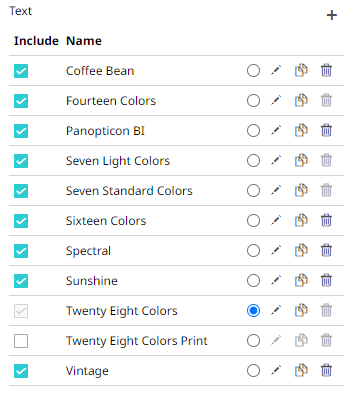
When a text column is added to the Color variable, the configuration pane displays the color associated with each categorical item, as specified with a default color palette (e.g., Twenty Eight Colors).
Steps:
1. On the Text section, click the
Add Palette  icon.
icon.
The Next Text Palette dialog displays.
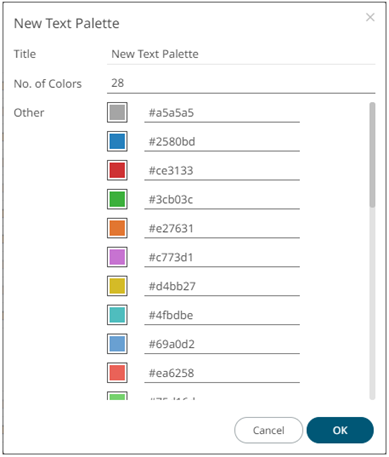
2. Enter the Title.
3. Select the Number of Colors in the drop-down list. Default is 28 colors.
The Other list is updated accordingly.
4. Click the Color box to display the Color dialog and set the other colors or enter the Hex color code.
5. Click  .
.
The new text color palette is added in the list (e.g., Sixteen Colors). Note that it can be deleted.