|
Creating a New Text Color Palette
The configuration pane for the Color variable changes depending on the column data type.
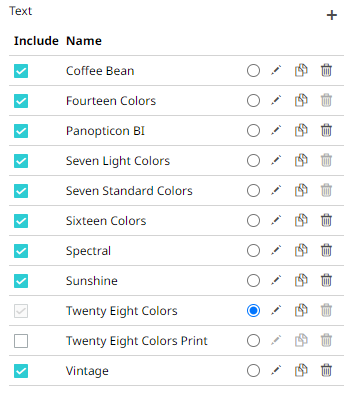
In the Web Authoring, when a text column is added to the Color variable, the configuration pane displays the color associated with each categorical item, as specified with a default color palette (e.g., Twenty Eight Colors).
Steps:
1. On the Text section, click the
Add Palette  icon.
icon.
The Next Text Palette dialog displays.
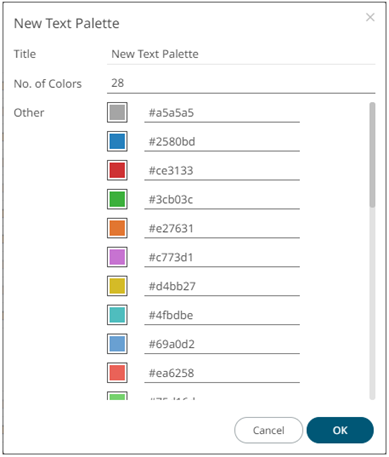
2. Enter the Title then click  .
.
3. Select the Number of Colors in the drop-down list. Default is 28 colors.
The Other list is updated accordingly.
4. To set the colors, you can do one of the following:
· Click the Color box to display the Color dialog and set the Hex color code, RGB, or HSL value
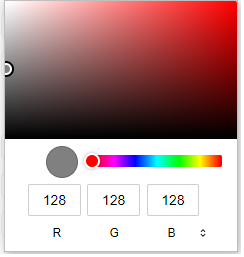
· Enter the Hex color code

· Enter the HTML color name

5. Click  .
.
The new text color palette is added in the list (e.g., Sixteen Colors). Note that it can be deleted.