MAT Explorer
Use the MAT Explorer interface to explore and load variables from a .MAT file, providing a visual way to see the contents of a .MAT file and to import variables into an OML session.
-
To open MAT Explorer, do one of the following:
-
Open the File
Utilities menu option, and then click
MAT Explorer.

-
Open the File
Utilities menu option, and then click
MAT Explorer.
-
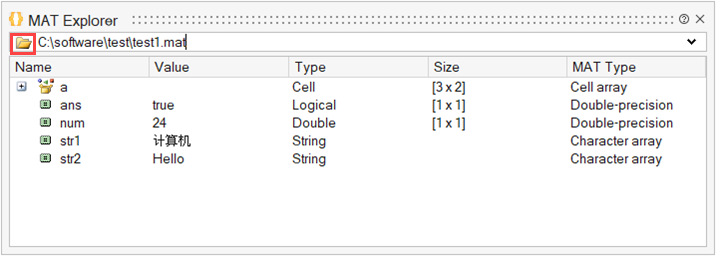
Click the Browse for .mat file icon, select a file, and
then click Open.
As the file is being read, the status bar is updated with the variables read. After the file is read, you can inspect the data tree for variables.
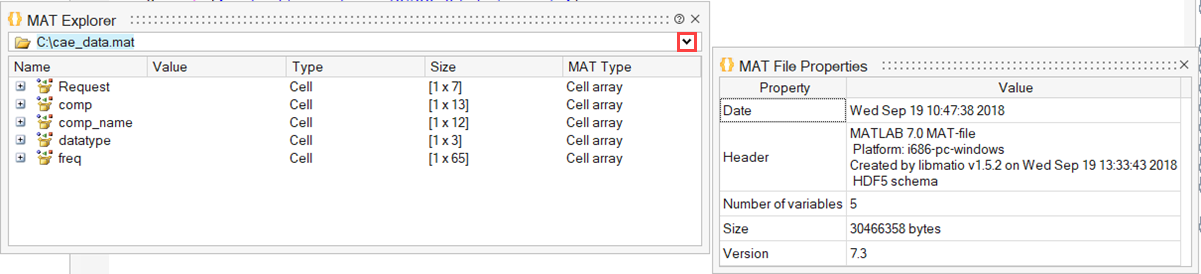
To open .MAT file properties, click the icon to the right of the file name.
If you right-click on a variable, a context menu gives you options to load all or only the selected variables in the current Compose session, select or deselect all the variables, and hide unsupported variables, if any.
Note: If there are unsupported variables and the context menu item is toggled, unsupported items are shown as disabled items in the tree.