WinProp is a complete suite of tools in the domain of wireless propagation and radio network planning. With applications
ranging from satellite to terrestrial, from rural via urban to indoor radio links, WinProp’s innovative wave propagation models combine accuracy with short computation time.
View the typical workflows when working with propagation simulations in specific scenarios, how to add a network planning
to a propagation simulation, include a receiver pattern, set up a time-variant scenario, include multiple-input multiple-output
(MIMO) at both the base station and the mobile station, connectivity analysis of sensor networks and optimization.
The workflow for a typical indoor propagation simulation is to use WallMan to create the geometry, Feko or AMan to produce the antenna pattern and ProMan to simulate the model and view the results.
The workflow for a typical urban propagation simulation is to use WallMan to create the geometry, Feko or AMan to produce the antenna pattern and ProMan to simulate the model and view the results.
The workflow for a combined urban and indoor propagation simulation is to import the geometry and save it in WallMan, use Feko or AMan to produce the antenna pattern and ProMan to simulate the model and view the results.
The workflow for a typical rural or suburban simulation is to import the terrain profile into ProMan, AMan to produce the antenna pattern and ProMan to simulate the model and view the results.
The workflow for a typical propagation simulation in a tunnel is to use TuMan to create the tunnel geometries, use Feko or AMan to produce the antenna pattern and use ProMan to simulate the model and view the results.
Use AMan to generate, edit and analyze a single antenna. Superimpose multiple antennas radiating similar signals to determine
the actual antenna pattern while taking into consideration the local environment.
WinProp includes empirical and semi-empirical models (calibration with measurements possible), rigorous 3D ray-tracing models
as well as the unique dominant path model (DPM).
In WinProp various air interfaces and applications are pre-defined: broadcasting, cellular, wireless access, WiFi, sensor networks,
ICNIRP and EM compliance.
View the typical workflows when working with propagation simulations in specific scenarios, how to add a network planning
to a propagation simulation, include a receiver pattern, set up a time-variant scenario, include multiple-input multiple-output
(MIMO) at both the base station and the mobile station, connectivity analysis of sensor networks and optimization.
The workflow for a typical indoor propagation simulation is to use WallMan to create the geometry, Feko or AMan to produce the antenna pattern and ProMan to simulate the model and view the results.
The workflow for a typical indoor propagation simulation is to use WallMan to create the geometry, Feko or
AMan to produce the antenna pattern and ProMan to simulate the model and view the results.
For a typical indoor propagation simulation, the steps are as follows:
Use WallMan to produce the geometry database.
This
can be done by creating it from scratch (possibly by drawing it with the aid of an
existing bitmap) or by converting it from another source, making modifications if
needed, and saving it in WinProp
format.
Optionally, an indoor database can be pre-processed in WallMan to establish visibility relations for ray-tracing,
to avoid repetitive work during the actual ray-tracing later in ProMan.
Note: File extensions for WallMan indoor databases are
.idb1.
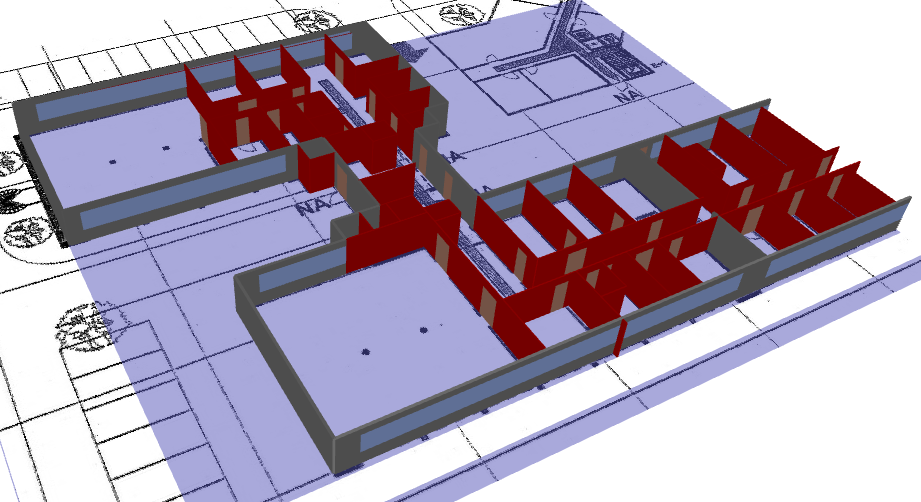
Figure 1. Office building being drawn in WallMan with
the aid of a bitmap.
Use Feko or AMan to
produce the antenna pattern.
For actual antenna design and simulation, Feko (part of the Altair
HyperWorks Products) can be used. Feko can export
antenna patterns in the correct format to be used by ProMan.
Note: Files with 3D antenna patterns have
extension .ffe, .apa2 or .apb3.
AMan is not an
antenna simulator. Instead, it is a tool that enables you to produce an antenna
pattern in WinProp format. The pattern may be
converted from another source. AMan can also
generate an approximate 3D antenna pattern in cases where only two 2D pattern cuts
are available.
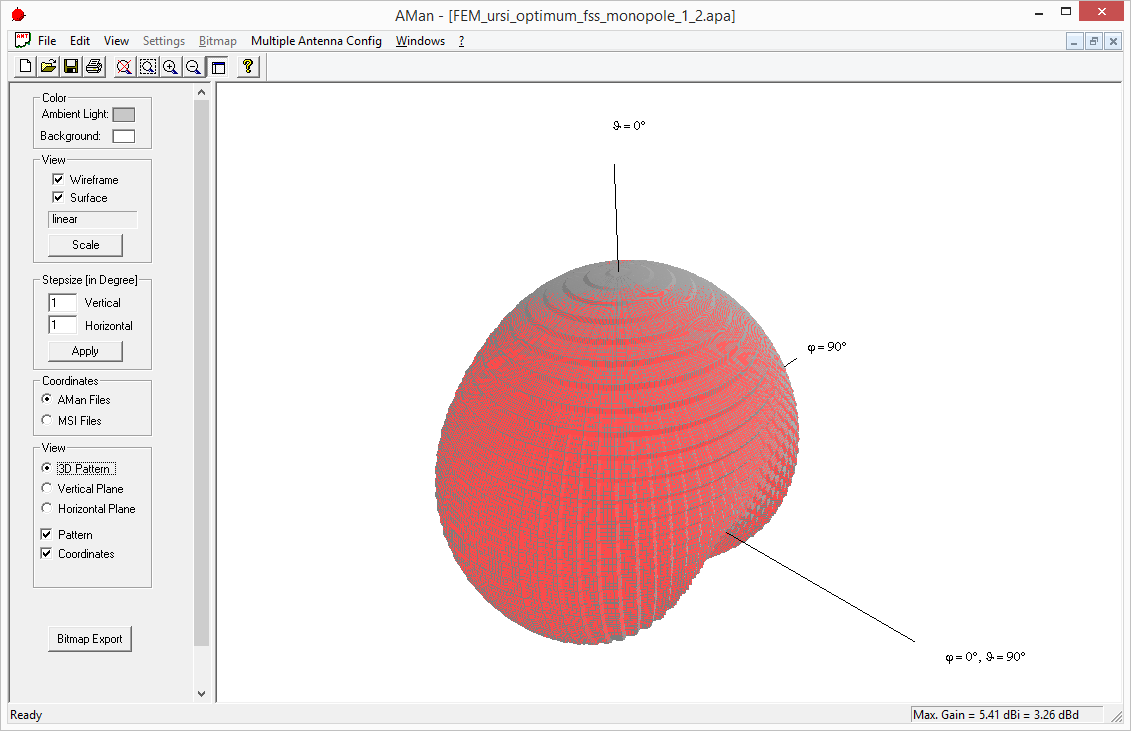
Figure 2. Antenna pattern of a WLAN router exported from Feko and displayed in AMan.
Start a new indoor propagation project in ProMan based
on the database produced in WallMan. The key menu in
ProMan is Project > Edit Project Parameter. This brings up a window with multiple tabs, specific to the
simulation of interest, where many simulation parameters are specified.
Figure 3. The key menu in ProMan is Project > Edit Project Parameter ....
In this menu, you also select the simulation method. The multi-wall method is
fast, but may under-estimate power levels far from the transmitter, after the signal
has travelled through many walls. Of the more-rigorous methods, the dominant path
model is recommended for pure coverage studies without multipath effects, while
standard ray-tracing or intelligent ray-tracing is recommended in case the temporal
or angular properties of the radio channel are of interest.
Run the simulation in ProMan through the
Computation menu or click the RUN
PRO button.
Figure 4. Click the RUN PRO button to run the
simulation.
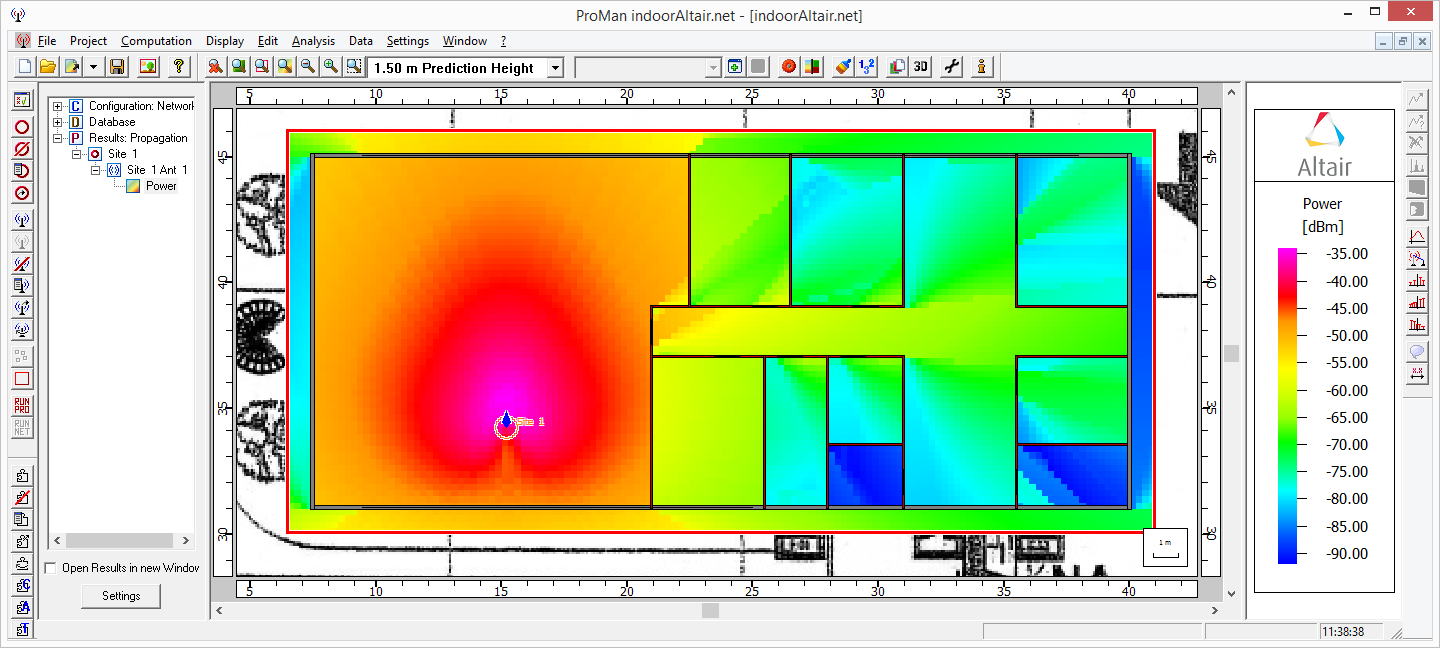
Inspect the results in the same ProMan interface.
Expand the tree on the left if necessary to access the results.