


|
Working with Data Table Editor
Most of the sections in this editor are available in Workbook Internal Data Table Editor. However, you can only create a single data table in this editor. To join data tables, you can use the Joined Data Table Editor.
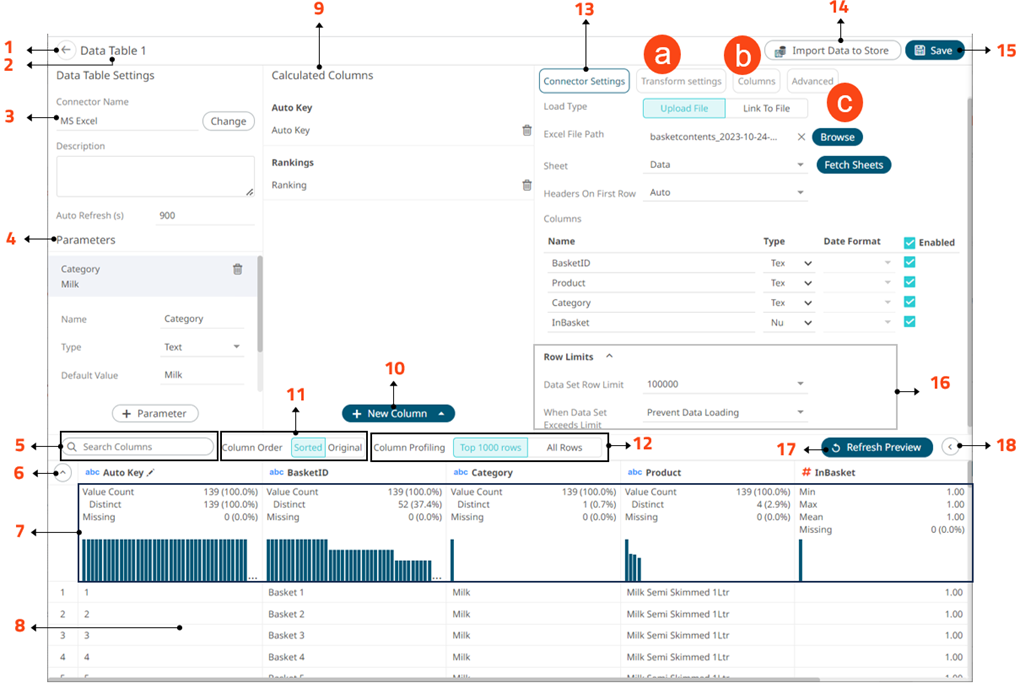
Data Table Editor Sections and Definitions
|
Section |
Description |
|
1 |
Back Exit the Data Table Editor and go to the Data Library page. |
|
2 |
Data Table Name Name of the data table. To modify, use the Rename option in the context menu. |
|
3 |
Data Table Settings Displays the data source that
you will connect to. Click |
|
4 |
Data Table Parameters Add or manage data table parameters. |
|
5 |
Search Columns Allows searching of columns on the Data Preview. |
|
6 |
Collapse Data Profile Pane Collapse
the Data Profile
pane. Click |
| 7 |
Data Profile Pane Displays the following information: · Rows of Data Profile (i.e., Value Count, Distinct, Missing) · Data Profile Histogram |
|
8 |
Data Preview Executes the queries to return and display preview of the data table you are creating. NOTE: The maximum number of rows displayed in the Data Preview is 100. |
|
9 |
Calculated Columns Allows you to view and manage the calculated columns. |
|
10 |
New Column Options Allows you to add any of the following columns: · Auto Key · Ranking · Identity, Sign, Manual, Equal Density, and Equal Distance numeric buckets |
|
11 |
When the Column Order is set to Sorted, the columns are grouped by type (Text, Date/Time, then Numeric) and sorted alphabetically. |
|
12 |
Column Profiling Perform column profiling either for the Top 1000 Rows or All Rows. |
|
13 |
Connector Settings Displays the connector settings of the data source and allows for limiting the amount of data to be returned. |
|
14 |
Import to Data Store Allows you to import the data table to a data store. |
|
15 |
Save Data Table Saves the data table definition. |
|
16 |
Row Limits Settings Allows setting of the row limit of data sources. |
|
17 |
Refresh Preview Allows you to refresh the data preview. |
|
18 |
Collapse Data Preview Collapse the Data Preview
pane. Click |

 to
expand the
to
expand the 
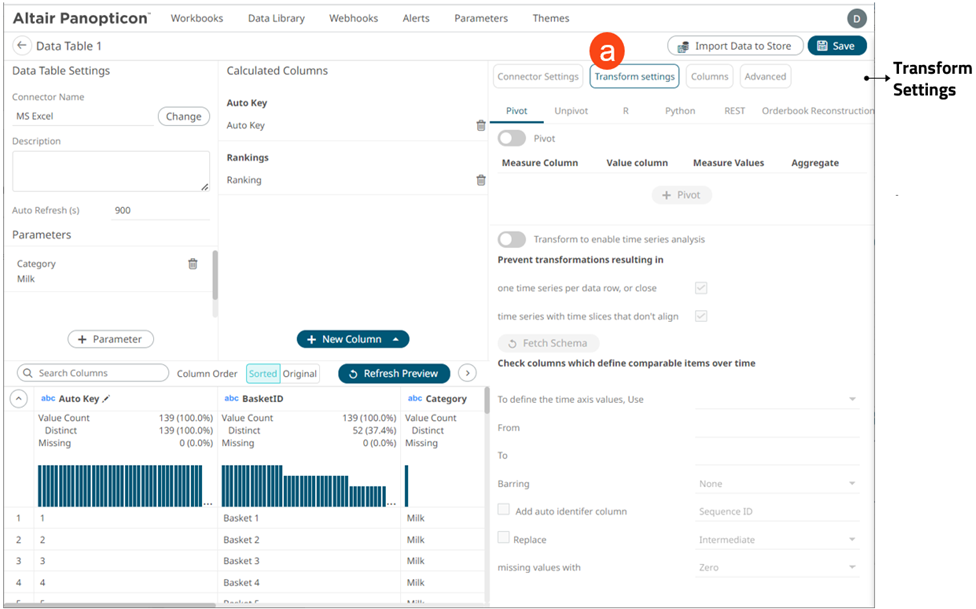
Clicking Transform
Settings  displays
the Transform Settings pane.
displays
the Transform Settings pane.
|
Section |
Description |
|
Transform Settings |
Allows you to: · Pivot or unpivot retrieved data. · Transform data to enable time series analysis including interpolation. · Run an R or Python script for data transformation. · Lists of orders to be reconstructed into an Order Book and conflated for output display. |
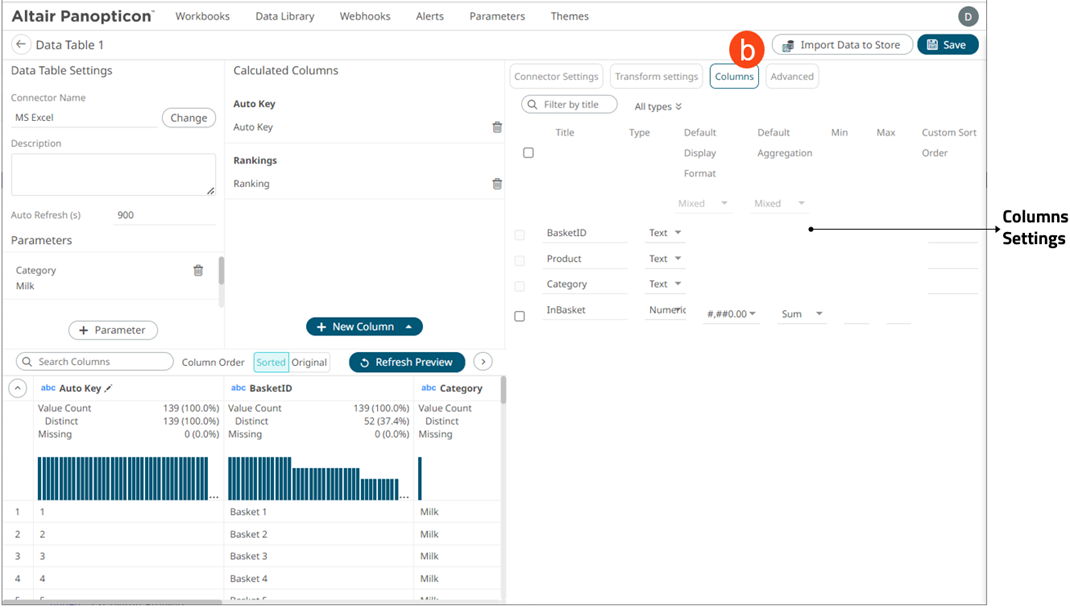
Clicking Columns
 displays the Columns Settings
pane.
displays the Columns Settings
pane.
|
Section |
Description |
|
Columns Settings |
Allows you to: · View the column data type · Rename the column names · Select the numeric or Date/Time format · Select the numeric default aggregation · Define the Min and Max range of numeric columns · Define custom sort order |
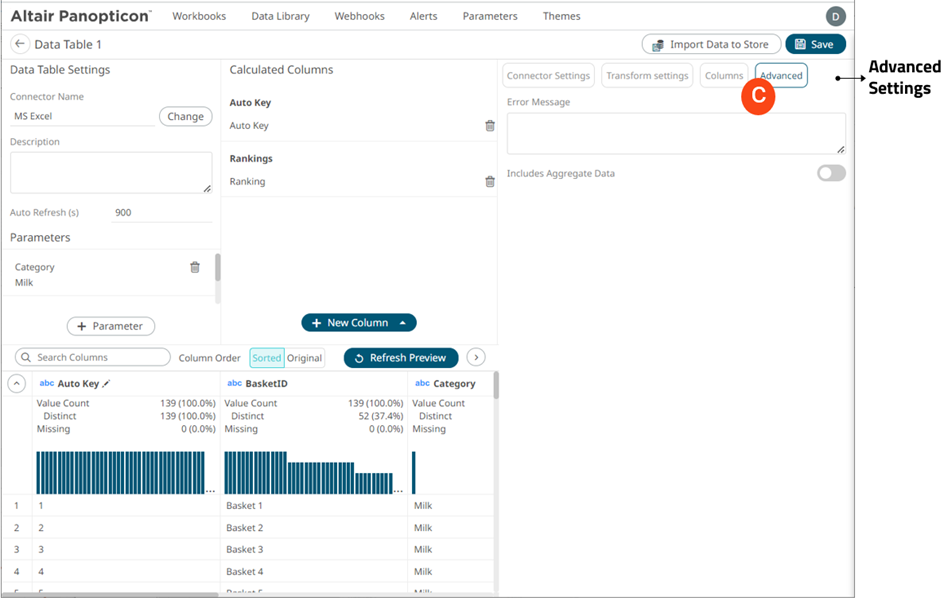
Clicking Advanced
 displays the Advanced Settings
pane.
displays the Advanced Settings
pane.
|
Section |
Description |
|
Advanced |
Allows you to: · Enter custom Error Message that will be displayed when an error occurs while fetching data. Can be parameterized. · Retrieve external aggregates |